Please note: The information in this guide may only be relevant to clients using Credas directly via Credas Connect. Whilst we make every effort to ensure the information provided is accurate and up to date, we always recommend referring to the relevant UK government and regulatory guidance for the most current and authoritative information.
Share codes
When you send a right to work/rent check to an individual, to meet the UK Governments regulations for digital checks using an IDSP, the individual will be asked to provide either a British/Irish passport or their share code.
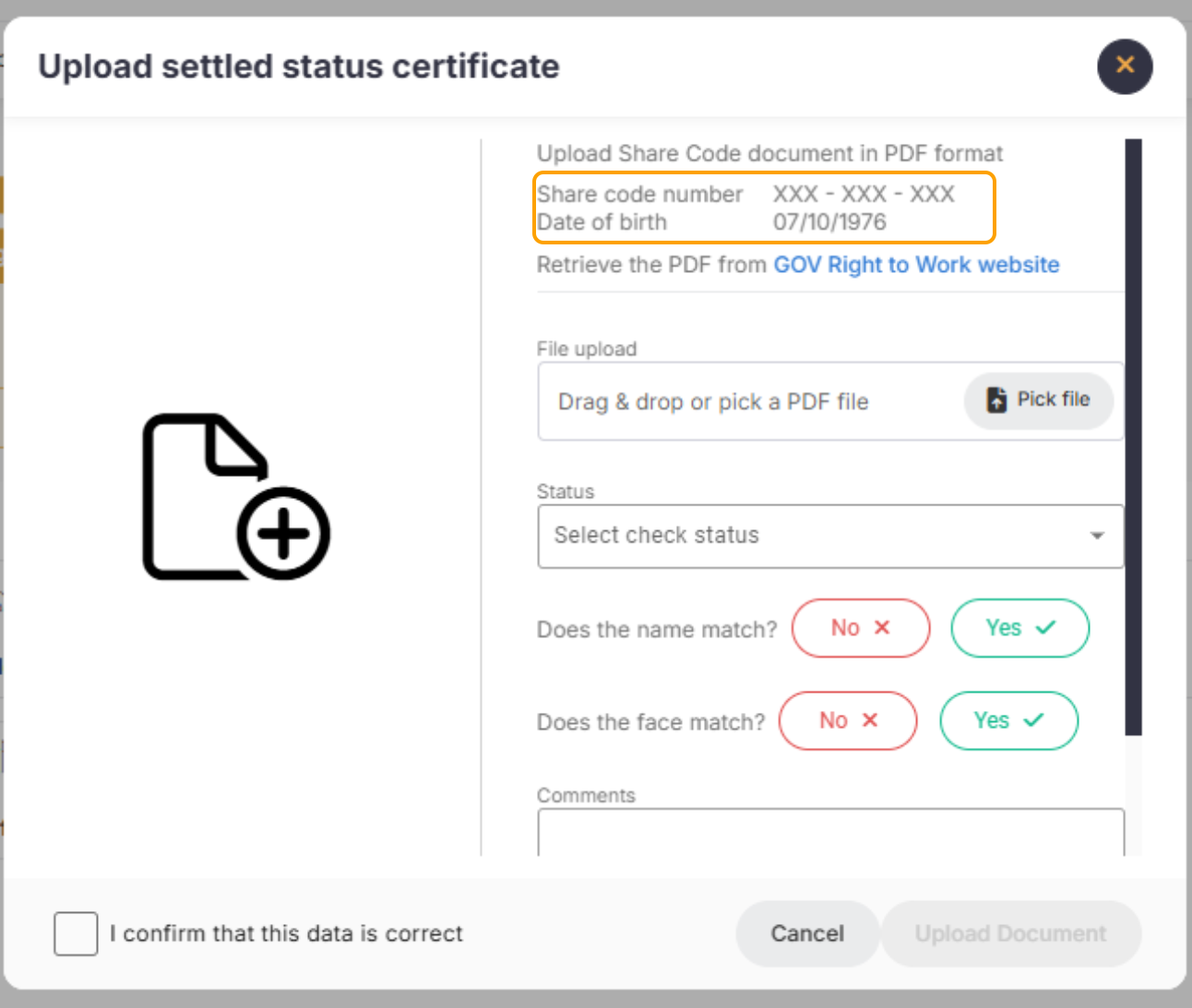
In the instance that the individual has uploaded their share code, this share code will be presented to you within the Credas portal. You will be presented with the share code number within the right to work tab as can be seen below. You will need to obtain the settled status document and upload it to the individuals profile.
If you need help understanding the overall right to work results, please read our guide here.
Will an identity document be captured with a share code?
Where a non-UK/Irish citizen provides a share code for their Home Office online report, an identity document will not be requested. This is because the UK government sets out that the report itself is sufficient proof of identity and an identity document is not required. Our platform is configured to be compliant with this. Where you wish to deviate from the compliant specification, by asking that we capture an overseas passport alongside a share code, we are able to provide this to you upon you signing a waiver acknowledging the fact that deviating from compliant specifications may not provide you with a statutory excuse. To enable this journey called 'Employee Identity Check', please contact our team here.
Will Credas obtain the settled status document for you?
By default, Credas will not obtain the settled status document for you, just the share code. Where you wish to deviate from the compliant specification, by asking that we capture the settled status document for you, you will need to sign a waiver acknowledging it may not provide you with a statutory excuse. To enable this function, please email sales@credas.com.
Got any questions?
If you have any questions please reach out to the Credas support team by contacting us here
We are committed to continually improving our support resources for you. We would greatly appreciate your feedback on this article to help us enhance your experience.
Was this article helpful?
That’s Great!
Thank you for your feedback
Sorry! We couldn't be helpful
Thank you for your feedback
Feedback sent
We appreciate your effort and will try to fix the article